How to Edit a CSV File Without Losing Leading Zeros, Dates, or Phone Numbers
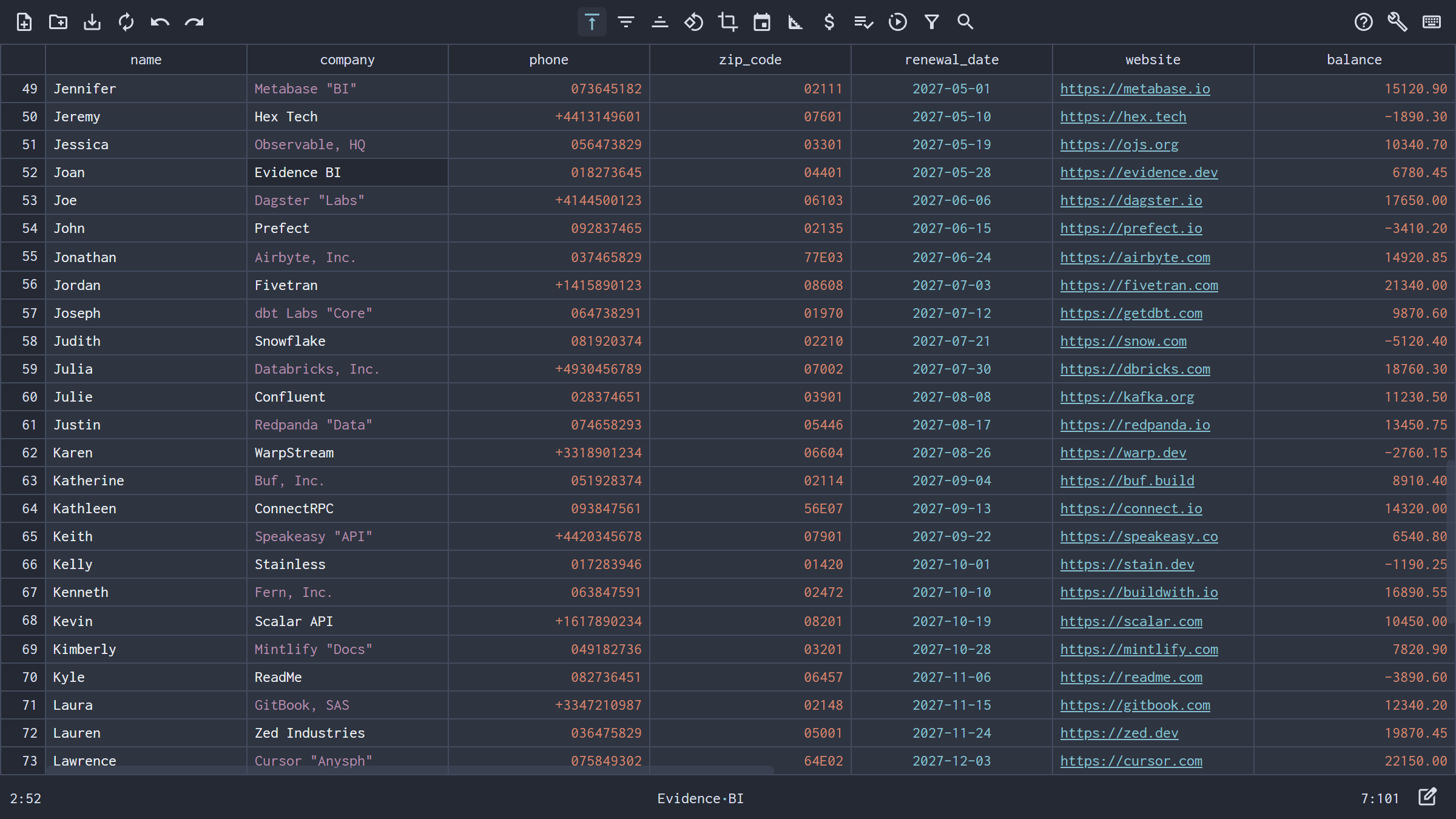
Traditional spreadsheets silently strip leading zeros from ZIP codes, convert long IDs into scientific notation, and rewrite ISO dates the moment you open a CSV. Here is why it happens—and how to edit CSV files with 100% verbatim text accuracy in NanoCell CSV.
Every day, data engineers, e-commerce managers, and operations teams run into the same silent data disaster: you open a clean .csv export to fix a single typo, press Ctrl+S, and discover that your downstream database import or API upload is now completely broken.
Why? Because traditional spreadsheets like Microsoft Excel, Google Sheets, LibreOffice Calc, and Apple Numbers are financial calculators—not plain-text CSV editors. The moment you open a CSV file, they automatically infer data types and permanently mutate your text values.
The 5 Silent CSV Corruptions in Standard Spreadsheets
When a spreadsheet guesses data types on file open, five destructive transformations happen behind the scenes:
- Postal & ZIP Codes Lose Leading Zeros: A US New England ZIP code like
"02138"or a padded account code like"00492"is cast to the integer2138or492, breaking address validation and foreign key joins. - International Phone Numbers Become Broken Formulas: A phone number in E.164 format like
"+41 79 123 45 67"starts with a+sign, which spreadsheets evaluate as a formula—resulting in#NAME?errors or stripped+signs (41791234567). - ISO & Regional Dates Flip Formats: Universal ISO-8601 dates (
2026-03-04) are silently rewritten to your operating system's regional format (3/4/26or04/03/2026), orDD/MMandMM/DDare swapped across international teams. - SKUs & Part Numbers Turn into Scientific Notation or Dates: Alphanumeric identifiers like
"84E02"are converted to floating-point scientific notation (8.40E+03), while part numbers like"10-12"or gene symbols like"MARCH1"become calendar dates (12-Oct,1-Mar). - 64-Bit Database, Stripe & Snowflake IDs Lose Precision: Spreadsheets store numbers as IEEE-754 double-precision floats, which only have 15 significant digits of precision. Any 16-to-19-digit ID (such as
"9007199254740993"or credit card / tracking numbers) has its trailing digits permanently zeroed out (9007199254740990).
zip_code,phone_e164,iso_date,sku_code,snowflake_id
02138,+41 79 123 45 67,2026-03-04,84E02,9007199254740993
Why the Excel "Import Text Wizard" Workaround Fails
Most tutorials suggest working around Excel's auto-formatting by never double-clicking a .csv file, and instead navigating through Data -> Get Data -> From Text/CSV -> Transform Data, manually selecting every column in Power Query, setting its type to Text, and exporting back to CSV.
While that prevents corruption during a single session, it does not store any type metadata inside the .csv file itself (because CSV is pure plain text). The very next time you—or a colleague—double-click that saved .csv file, Excel strips the leading zeros and rewrites the dates all over again.
The Permanent Fix: Use a Verbatim CSV Editor
NanoCell CSV was built from the ground up around one rule: every cell in a CSV file is verbatim text.
- Zero Automatic Type Casting: When you open a
.csvor.tsvfile in NanoCell CSV,"02138"stays02138,"+41 79 123 45 67"stays+41 79 123 45 67,"84E02"stays84E02, and 64-bit IDs retain every single digit. - Non-Destructive Visual Highlighting: NanoCell color-codes numbers, ISO dates (
YYYY-MM-DD), clickable URLs (Ctrl+Click), and RFC 4180 quote/comma warnings visually so you can spot patterns at a glance—without ever altering the underlying text string. - Explicit, Opt-In Formatting Only When You Want It: If you do want to standardize dates to
YYYY-MM-DDor normalize locale numbers, you trigger it explicitly in the Validation Pane (Ctrl+Shift+P) with full cell-by-cell preview and single-step undo (Ctrl+Z).
"02138"stays"02138""+41 79 123 45 67"stays"+41 79 123 45 67""9007199254740993"stays"9007199254740993"
How to Open and Edit Your CSV Safely in 10 Seconds
- In Your Browser: Open NanoCell CSV Editor and drag-and-drop your
.csvor.tsvfile—100% locally in your browser with zero server uploads. - As Your Default Desktop CSV App: Click Install on nanocell-csv.com to install the offline Desktop PWA (no admin rights required) and set NanoCell CSV as your OS default handler for
.csvfiles so double-clicking a CSV never opens Excel by mistake again.
Need to clean up messy headers or locale numbers before importing your CSV into PostgreSQL, MySQL, or BigQuery? Read our companion guide on how to clean and prepare CSV files for SQL database imports, or learn how to fix garbled UTF-8 characters and semicolon delimiters.